 Linux Typing Tutor
TypingMaster 12 for Linux BETA
The touch typing tutor, now on Linux. Learn to type faster and without looking at the keyboard with guided courses, typing games and typing tests – on Ubuntu, Linux Mint, Fedora and other Linux distributions.
- Ubuntu
- Linux Mint
- Fedora
- Debian
- Zorin OS
- Pop!_OS
- elementary OS
- openSUSE
- Arch Linux
TypingMaster on the Linux desktop
Lessons with an on-screen keyboard and finger guide, and six typing games – running on Linux.
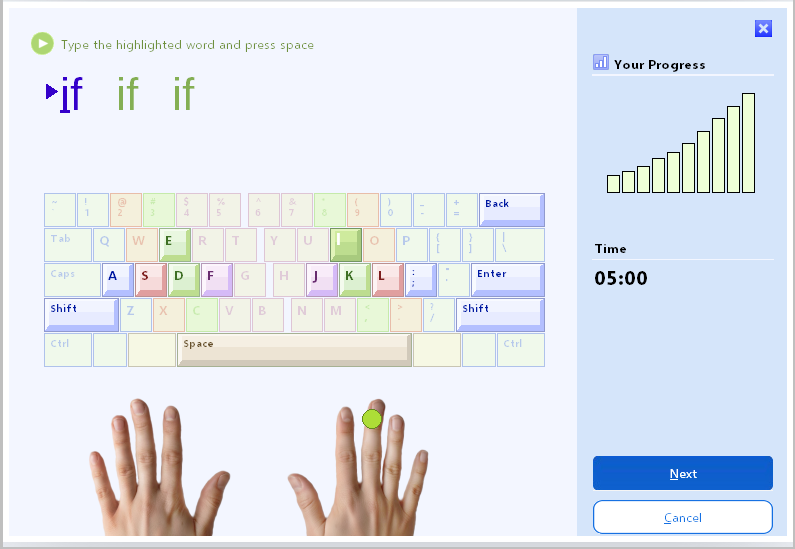
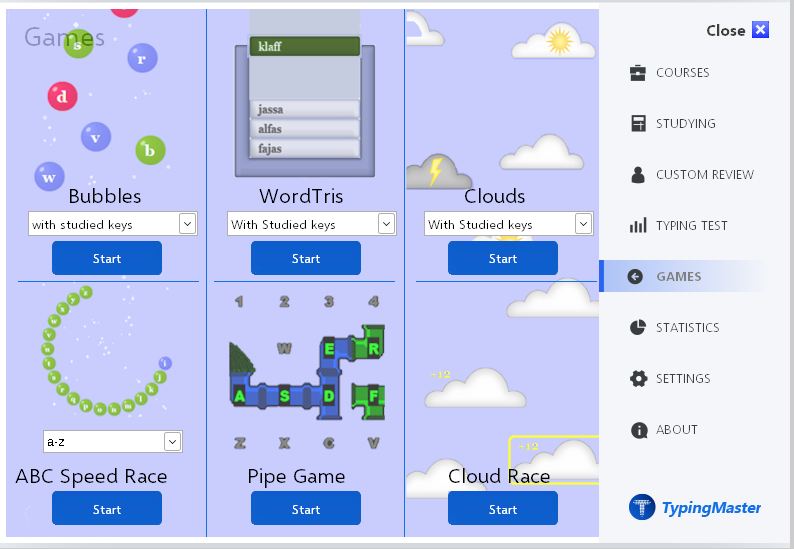
A complete typing tutor for Linux
The same TypingMaster you know from Windows, packaged for the Linux desktop.
Guided touch typing courses
Step-by-step lessons from the home row to fluent typing, plus speed building and number pad courses.
Typing tests
Measure your speed (WPM) and accuracy with detailed results, and print or save reports and certificates.
Typing games
Bubbles, Clouds, Word Tris and more make practice fun for kids and adults.
Personal review
TypingMaster finds your difficult keys and builds extra exercises just for you.
Many keyboard layouts
QWERTY, QWERTZ, AZERTY, Dvorak, Colemak and dozens of national layouts, in many interface languages.
Safe Flatpak sandbox
Installs for your user only, without admin rights, and runs isolated from the rest of your system.
How to install TypingMaster on Linux
TypingMaster for Linux is a Flatpak package. Choose your distribution for step-by-step instructions. You don't need Wine or any other extra software.
Install TypingMaster on Linux Mint
Linux Mint comes with Flatpak and Flathub already set up.
-
Download TypingMaster-12.0.1.980-x86_64.flatpak to your Downloads folder.
-
Open a terminal (Ctrl+Alt+T) and run:
flatpak install --user ~/Downloads/TypingMaster-12.0.1.980-x86_64.flatpak -
Start TypingMaster from the menu (Education). The first start takes up to half a minute while TypingMaster sets itself up.
Install TypingMaster on Ubuntu
Ubuntu doesn't include Flatpak by default. You need to set it up once.
-
Open a terminal (Ctrl+Alt+T) and install Flatpak:
sudo apt install flatpak -
Add the Flathub repository, where TypingMaster gets its shared components:
flatpak remote-add --user --if-not-exists flathub https://dl.flathub.org/repo/flathub.flatpakrepo -
Log out and log back in (or restart), so TypingMaster appears in your app menu.
-
Download TypingMaster-12.0.1.980-x86_64.flatpak and install it:
flatpak install --user ~/Downloads/TypingMaster-12.0.1.980-x86_64.flatpak -
Start TypingMaster from the app grid. The first start takes up to half a minute.
Install TypingMaster on Fedora
Fedora comes with Flatpak preinstalled.
-
Download TypingMaster-12.0.1.980-x86_64.flatpak to your Downloads folder.
-
Open a terminal and run:
flatpak install --user ~/Downloads/TypingMaster-12.0.1.980-x86_64.flatpak -
Start TypingMaster from Activities. The first start takes up to half a minute.
Install TypingMaster on Debian, Arch, openSUSE and other distributions
-
Install Flatpak with your package manager, if it isn't installed yet:
sudo apt install flatpak # Debian, Raspberry Pi OS (x86), MX Linuxsudo pacman -S flatpak # Arch Linux, Manjaro, EndeavourOSsudo zypper install flatpak # openSUSE -
Add the Flathub repository:
flatpak remote-add --user --if-not-exists flathub https://dl.flathub.org/repo/flathub.flatpakrepo -
Download TypingMaster-12.0.1.980-x86_64.flatpak and install it:
flatpak install --user ~/Downloads/TypingMaster-12.0.1.980-x86_64.flatpak -
Log out and back in, then start TypingMaster from your app menu, or run:
flatpak run com.typingmaster.TypingMaster
More distributions: see the Flatpak setup guide.
First installation: Flatpak also downloads the shared Freedesktop runtime that TypingMaster runs on from Flathub. This is a one-time download of a few hundred megabytes, shared with other Flatpak apps.
Updating
Download the new version from this page and install it the same way. Your courses, results and settings are kept.
flatpak install --user ~/Downloads/TypingMaster-<version>-x86_64.flatpakUninstalling
Remove TypingMaster but keep your progress:
flatpak uninstall --user com.typingmaster.TypingMasterRemove TypingMaster and all your data:
flatpak uninstall --user --delete-data com.typingmaster.TypingMasterVerify the download
Optional: check that the file downloaded completely and wasn't altered. The output must match the SHA-256 checksum below.
sha256sum ~/Downloads/TypingMaster-12.0.1.980-x86_64.flatpak
SHA-256: 22a24fe24f9020ef1c1a1af9cb31bcc0e9b463397823b0b6a84510a76c0e9465
(.sha256 file)
System requirements
| Operating system | 64-bit Linux (x86_64) with Flatpak – Ubuntu, Linux Mint, Fedora, Debian and most other distributions |
|---|---|
| Desktop | Any desktop with X11 or Wayland (GNOME, KDE Plasma, Cinnamon, Xfce, MATE and others) |
| Screen | 1024 × 768 or higher; the window is scaled automatically on large screens |
| Disk space | About 1.5 GB including the shared Flatpak runtime |
| Internet | Needed for installation, online typing tests and web links |
| Admin rights | Not needed – installs for your user only (Ubuntu needs sudo once to install Flatpak) |
Good to know
- Keyboard layout: choose your keyboard layout in your Linux system settings. TypingMaster's lessons follow it; switching the layout from inside TypingMaster isn't available on Linux.
- Window size: TypingMaster scales its window automatically to your screen. See the FAQ to change it.
- Your data: progress and settings are stored in
~/.var/app/com.typingmaster.TypingMaster/. Back up this folder to keep your results. - Saving reports: reports and certificates can be saved to your Desktop, Documents or Downloads folders.
- Not on Linux? TypingMaster for Windows is available on our main page.
Frequently asked questions
Which Linux distributions does TypingMaster support?
TypingMaster 12 for Linux is a Flatpak package. It runs on 64-bit (x86_64) Linux distributions that support Flatpak, including Ubuntu, Linux Mint, Fedora, Debian, Zorin OS, Pop!_OS, elementary OS, openSUSE and Arch Linux. ARM computers (such as Raspberry Pi) are not supported.
Do I need to install Wine?
No. TypingMaster for Linux includes everything it needs. The Wine compatibility layer is part of the package and runs in its own sandbox, separate from any Wine installation on your computer.
Where does TypingMaster store my progress on Linux?
Your courses, results and settings are stored in ~/.var/app/com.typingmaster.TypingMaster/ in your home folder. They are kept when you update TypingMaster. To move to another computer, copy this folder.
How do I make the TypingMaster window bigger or smaller?
TypingMaster picks a size from your screen resolution automatically. To change it, open this file in a text editor:
~/.var/app/com.typingmaster.TypingMaster/config/typingmaster.conf
and set DPI=96 (100 %), 120 (125 %), 144 (150 %) or 192 (200 %). Use DPI=auto to go back to automatic. The change applies at the next start.
The first start is slow. Is that normal?
Yes. On the first start TypingMaster prepares its environment, which can take up to half a minute. Later starts take only a few seconds.
Can I install TypingMaster for all users of the computer?
Yes. Install without --user to install it system-wide (this asks for an administrator password):
sudo flatpak install ~/Downloads/TypingMaster-12.0.1.980-x86_64.flatpakEach user still has their own progress and settings.
How do I uninstall TypingMaster from Linux?
Run flatpak uninstall --user com.typingmaster.TypingMaster. Add --delete-data to also remove your progress and settings.
TypingMaster doesn't start. What can I do?
Start it from a terminal to see what happens:
flatpak run com.typingmaster.TypingMasterMake sure your system is up to date (flatpak update). If the problem continues, contact TypingMaster support and include the terminal output.
Third-party software
TypingMaster for Linux includes open-source components:
- Wine – Windows compatibility layer, licensed under the GNU Lesser General Public License 2.1 or later. Source code: winehq.org and github.com/flathub/org.winehq.Wine.
- Selawik font by Microsoft, licensed under the SIL Open Font License 1.1. github.com/microsoft/Selawik.
- Freedesktop runtime and other shared components are installed separately from Flathub under their own licenses.